Amazon SP-API changes now prevent third-party applications and customers from accessing product reviews without being logged in. To continue importing reviews, you need the cookie string from your Amazon account.
Important: Use an Amazon account on the same country domain as the marketplace from which you want to scrape reviews.
Steps to obtain the cookie string
1. Log in to your Amazon account, right-click anywhere on the page, and select Inspect to open developer tools.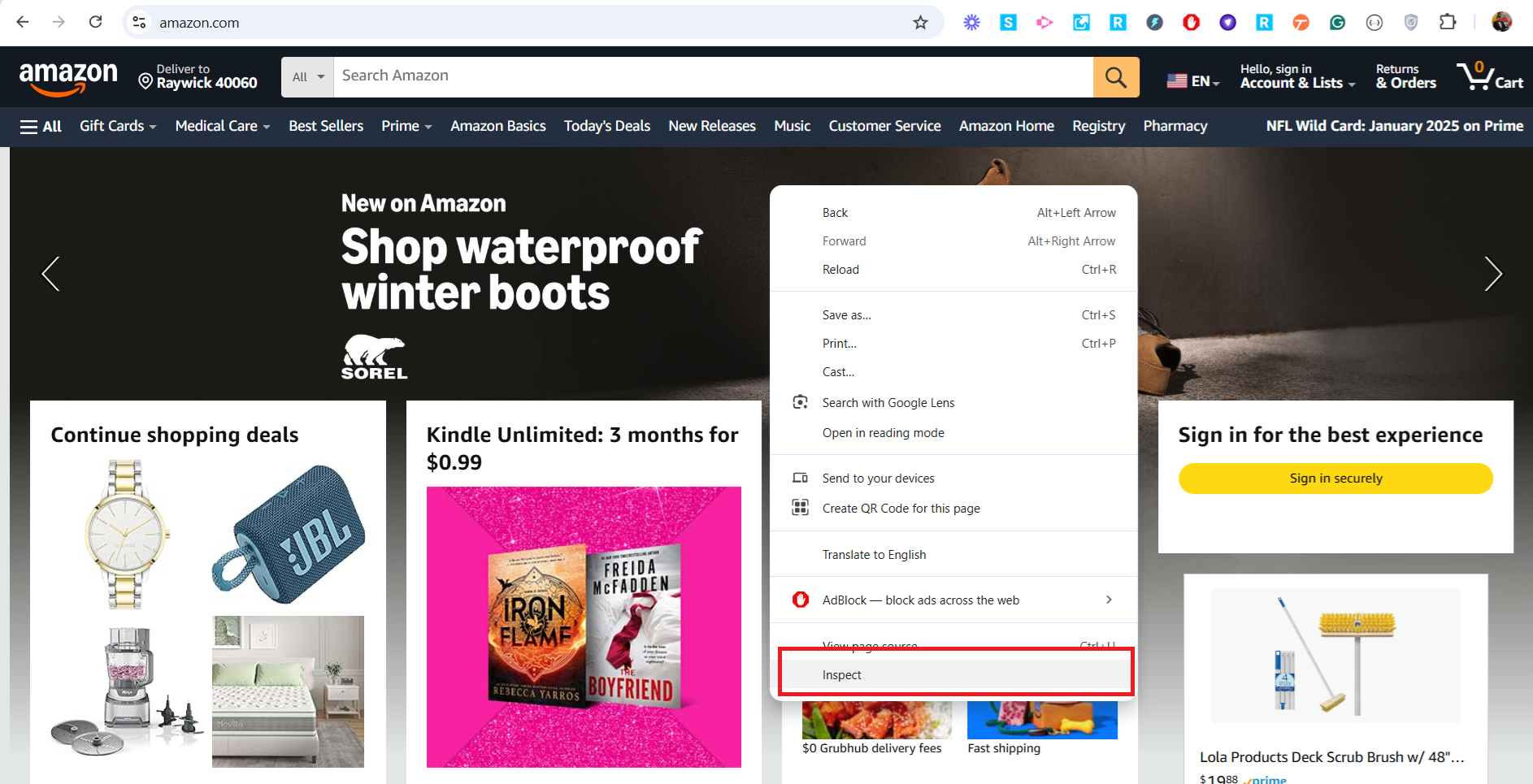
2. Open the Network tab, then select the All filter within Network.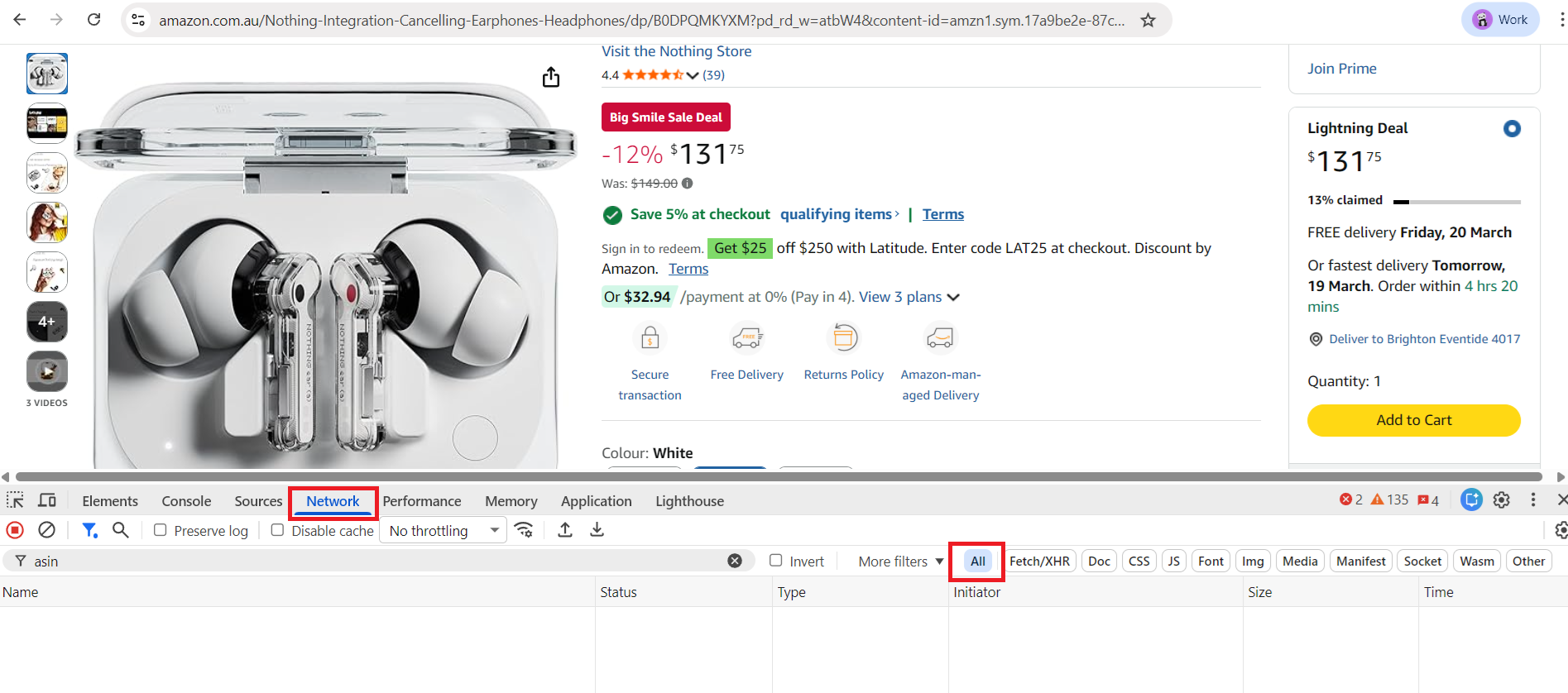
3. Navigate to an Amazon product URL and search for asin in the Network tab. Select the matching request, scroll to Request Headers, and copy the full Cookie header value.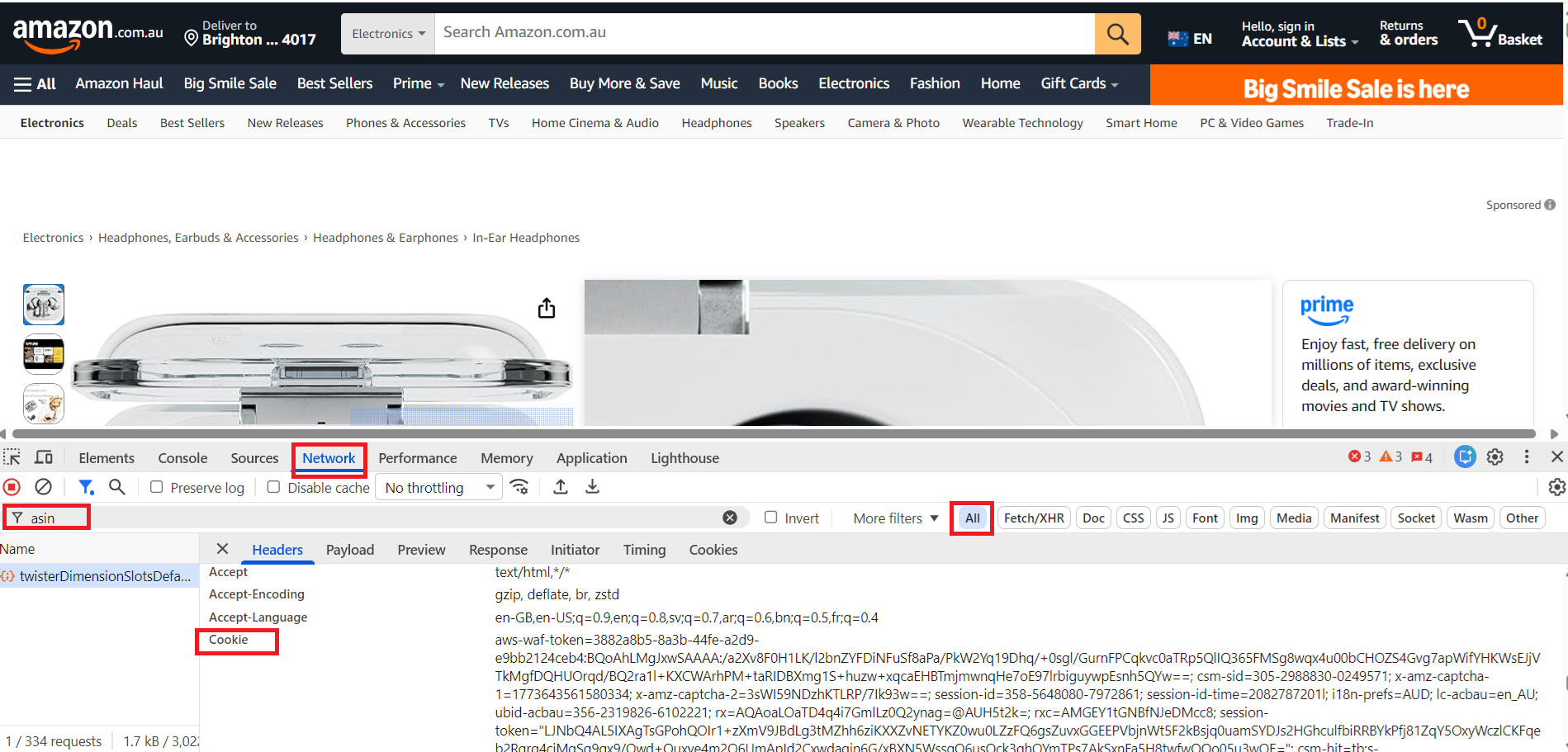
Note: If the Cookie header does not appear, refresh the product page with the Network tab open and check again.
4. Paste the cookie in the Connectr dashboard when importing reviews.
Why is this required?
Amazon now blocks review access for users who are not logged in. Copying the cookie from your logged-in session is the viable alternative for the Amazon Reviews API.
Which browser to use
These steps work best in Safari on macOS and Google Chrome on Windows or macOS. Avoid Firefox—it compresses the cookie string, which can cause API failures.
Important: If you refresh the same Amazon product page multiple times and reuse the same cookie, Amazon may temporarily block that cookie for up to 24 hours. Review imports can fail even when the cookie looks valid.
How to avoid cookie blocking
- Generate a fresh cookie from a different Amazon product page each time.
- Do not refresh or reuse a cookie from the same product URL repeatedly.