Before you begin, you need to configure your Shopify currency settings to allow the app to display dual prices correctly.
Step 1: Update Shopify Currency Format
In your Shopify Admin, navigate to Settings → General → Store defaults (or the currency settings section) and update the following fields:
- HTML with currency
- HTML without currency
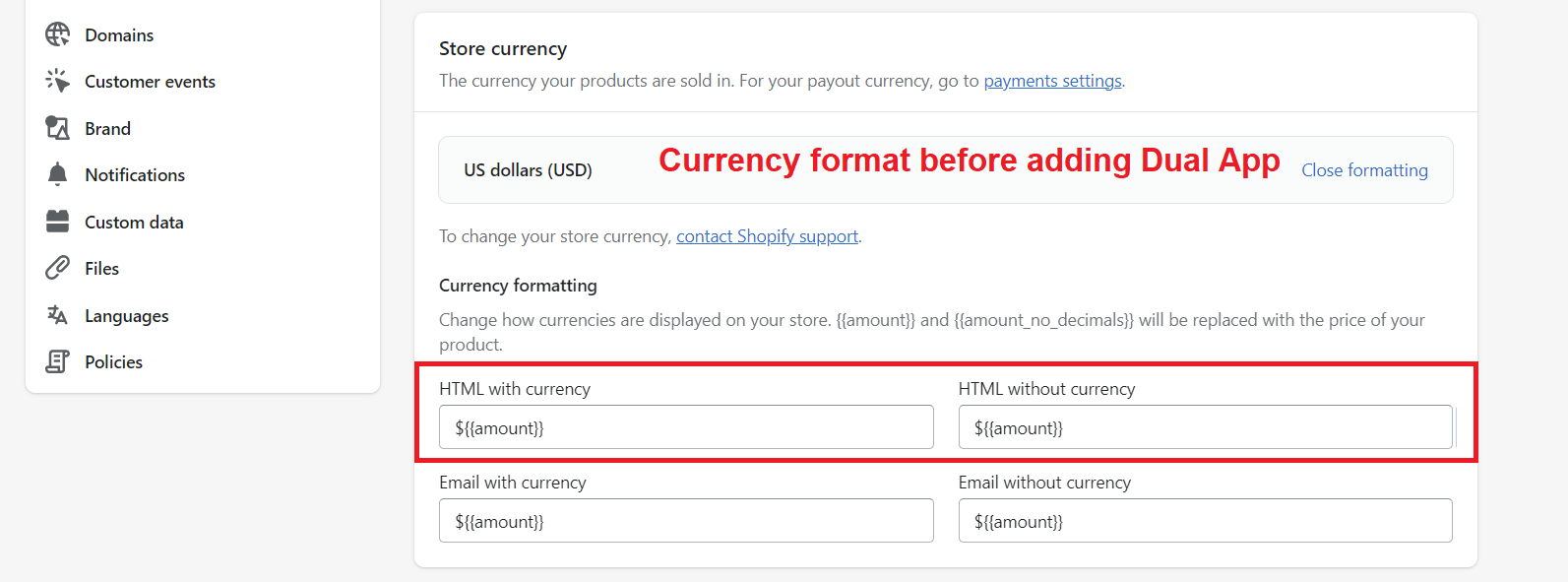
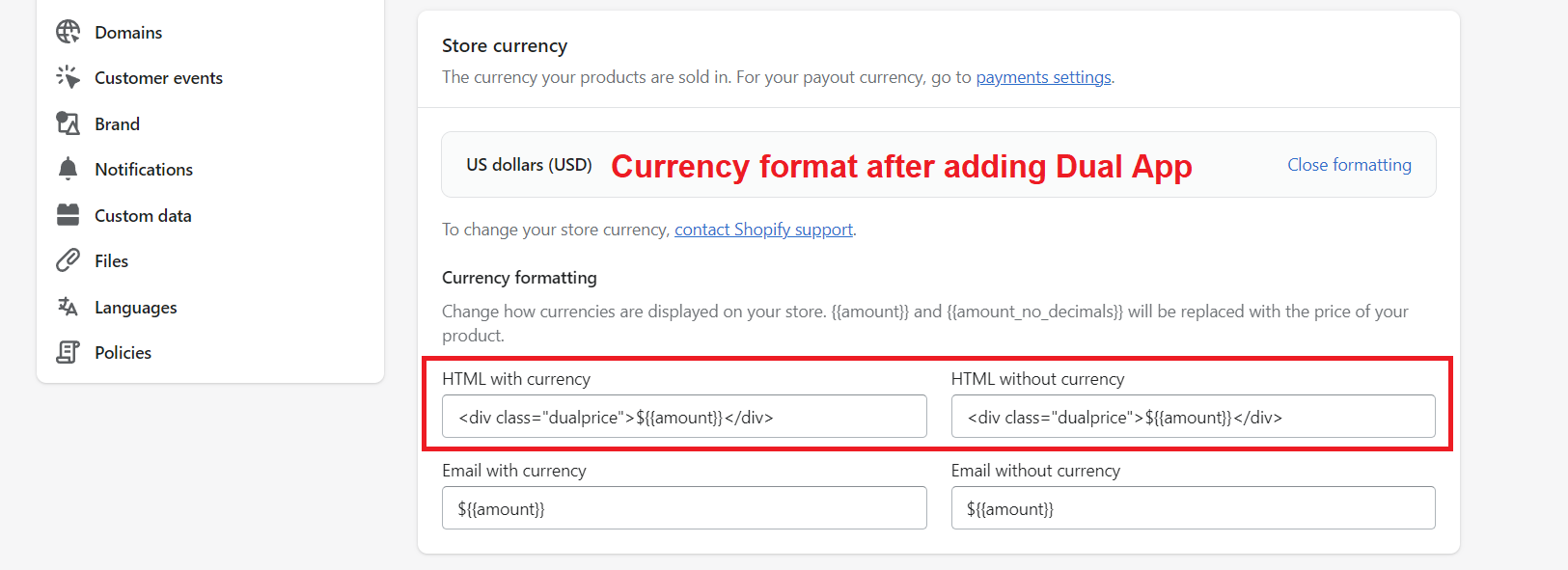
Replace the existing value with the following code:
<div class="dualprice">${{amount}}</div>
Step 2: Enable the App Embed
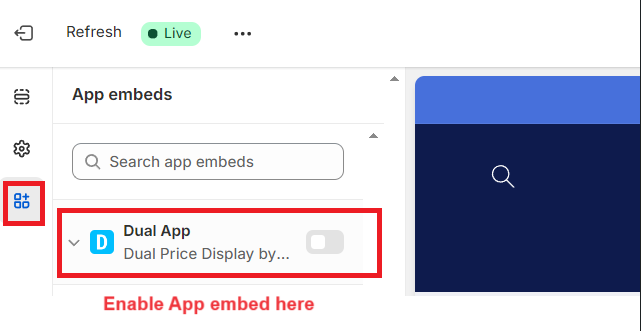
From your Shopify Admin, go to Online Store → Themes → Customize.
- Open App embeds.
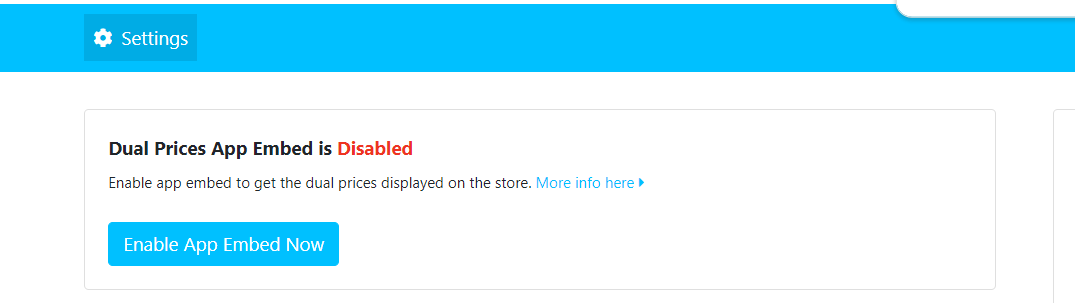
- Enable the Dual Price Display app embed.
- Click Save.
Refer to the image below to see how to enable the app embed.
Step 3: Configure Tax Settings
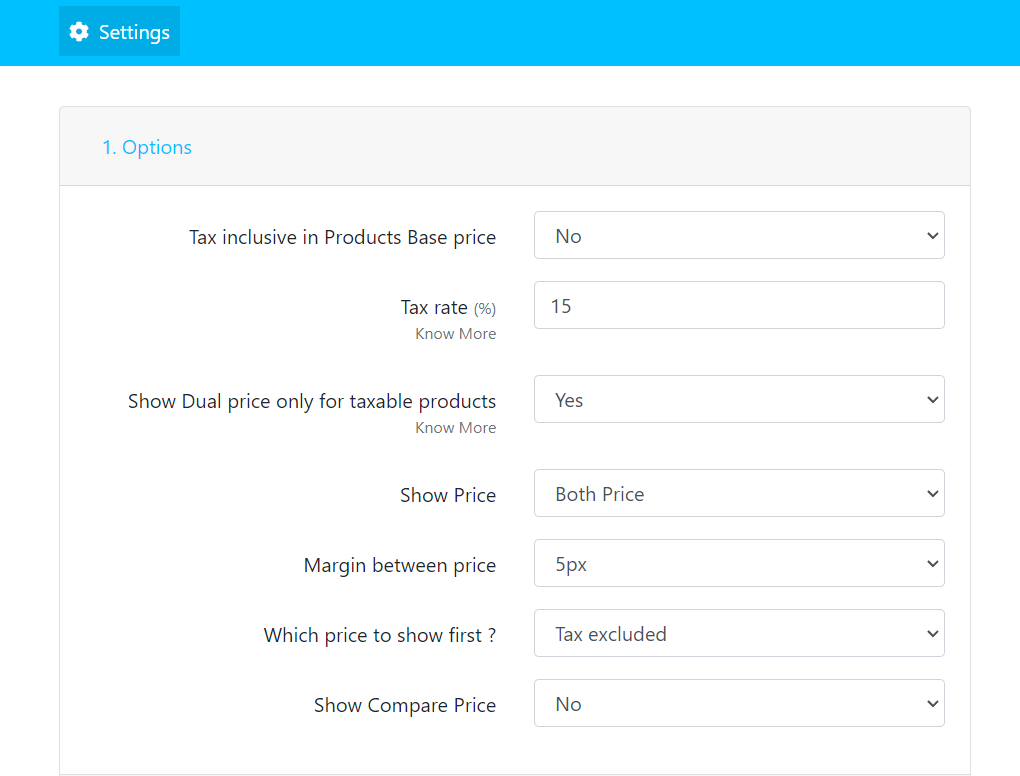
Open the Dual Price Display app and navigate to Settings.
Configure the following options according to your store's requirements:
- Whether your base product price is Tax Inclusive or Tax Exclusive
- Tax rate (VAT/GST)
- Currency format and other available settings
Save your changes once the configuration is complete. Refer to the image below for an example.
Step 4: Customize the Price Display
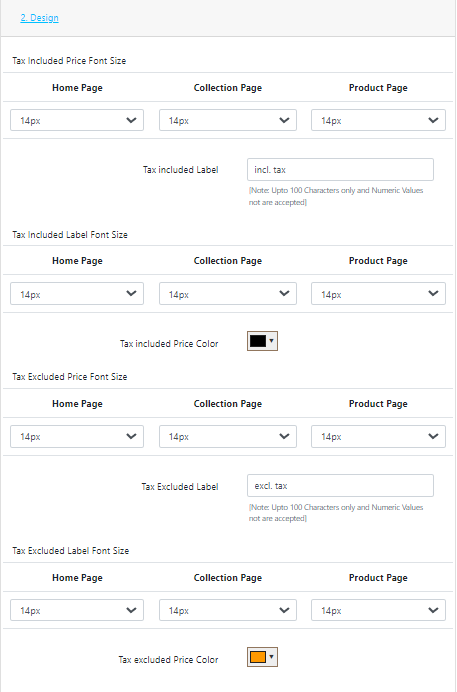
Navigate to the Design section of the app.
Here, you can customize how the additional price appears by configuring:
- Display label (text shown next to the price)
- Text color
- Font size
- Position and appearance on:
- Product pages
- Collection pages
- Home page
Adjust these settings to match your store's branding. Refer to the image below for reference.
Step 5: Enable Dual Price Display
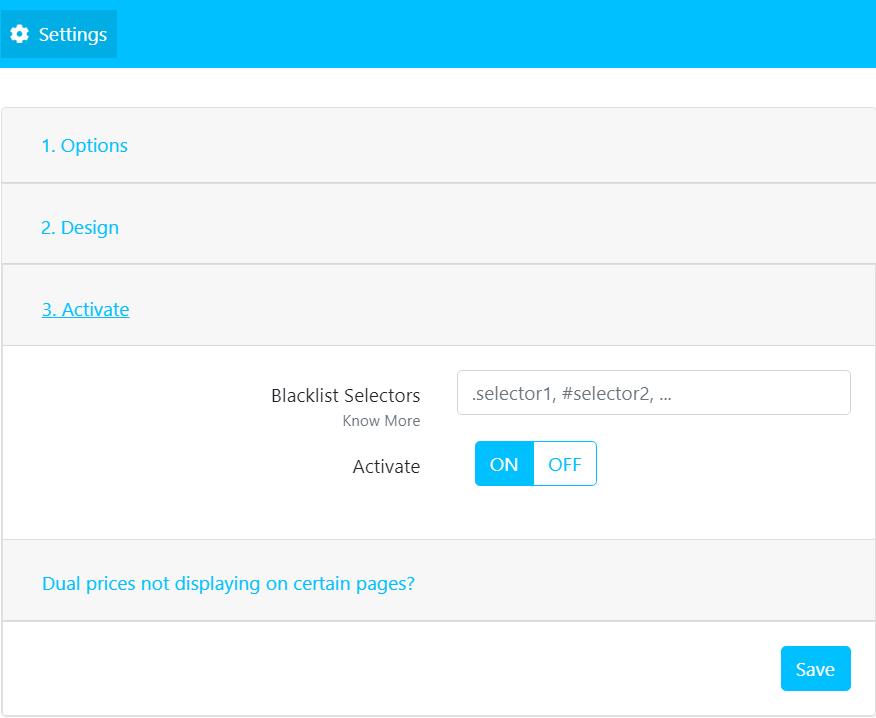
Once you've completed the configuration:
- Turn on the Display Both Prices toggle.
- Click Save.
Your storefront will now display prices with and without tax based on the settings you've configured.
Video Tutorial
For a complete walkthrough, check out our video guide here.