This guide explains how to configure certain product variants to use Shopify’s native Add to Cart button while other variants display an External Link / Outlink button.
This feature is useful when:
Some variants are fulfilled directly through your Shopify store
Other variants redirect customers to external marketplaces such as Amazon, Walmart, Target, etc.
How the Feature Works ?
The Outlink app checks the currently selected variant and decides which button to display based on the settings configured for that variant.
Step 1: Enable Outlink
You must first enable Outlink for the product/variants by following the setup guide here.
Step 2: Configure Each Variant
Open Edit Outlinks for the product.
For every variant, choose whether to:
- Show Shopify Add to Cart, or
- Display the Outlink button.
Save your changes once you've configured all variants.
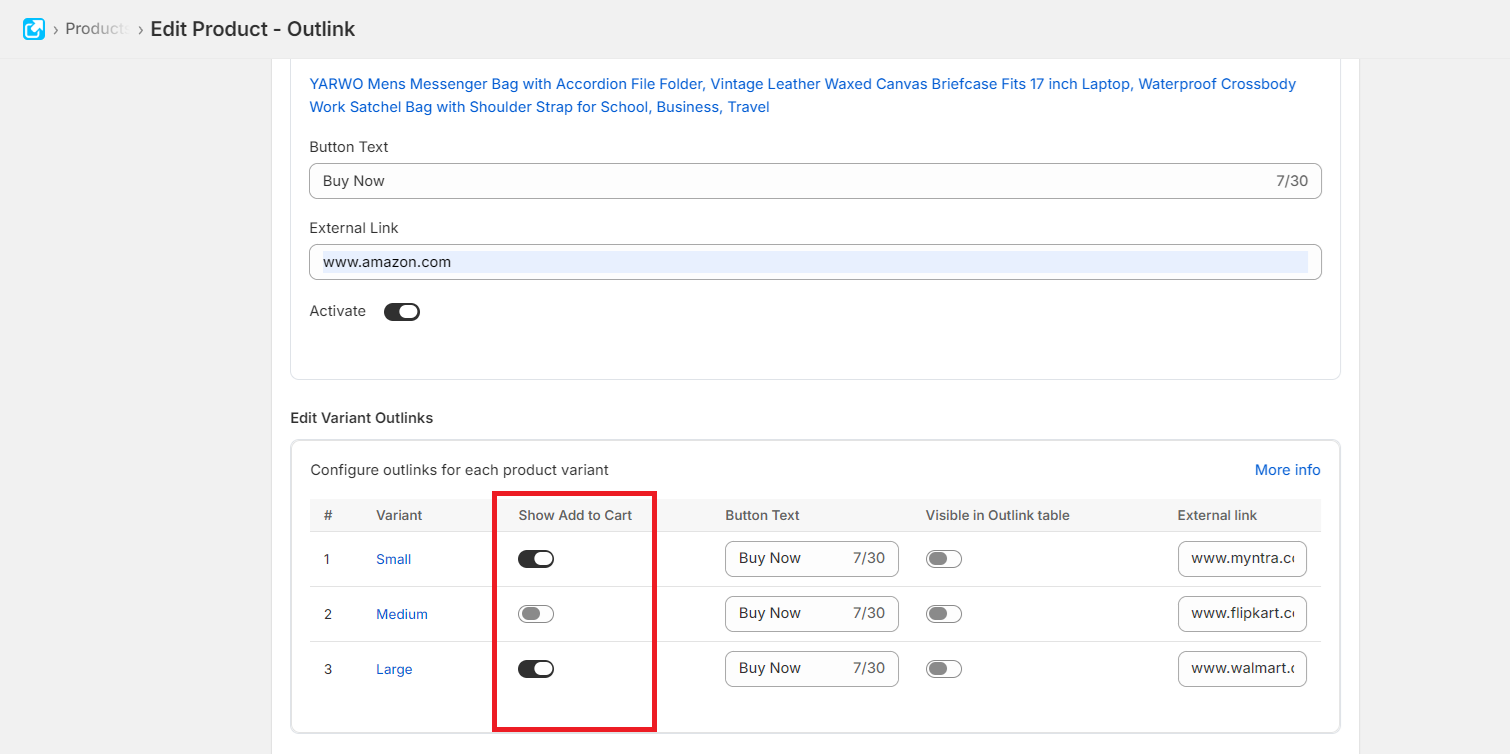
Variant Behavior
Option 1: Show Shopify Add to Cart
When Show Add to Cart is enabled:
- Customers see Shopify's native Add to Cart button.
- Products can be added to the cart and purchased through your store.
Option 2: Show Outlink Button
When Show Add to Cart is disabled:
- The Outlink button is displayed.
- Customers are redirected to the external URL configured for that variant.
Out-of-Stock Behavior
If:
- Show Add to Cart is enabled, and
- The selected variant is out of stock,
Outlink will automatically display the Outlink button instead, allowing customers to continue to the configured external destination.
Hide Add to Cart / Shopify Payment Button
The Outlink App Block includes a setting called:
Hide Add to Cart / Shopify Payment Button
When Enabled
For variants configured to use Outlinks:
- The Outlink button is displayed.
- Shopify's Add to Cart and Shopify Payment buttons are hidden.
Automatic Exception
If a variant is configured to use Shopify Add to Cart, the app will automatically display the Add to Cart button for that specific variant—even if the Hide Add to Cart / Shopify Payment Button setting is enabled.
This ensures each variant follows its own configuration without requiring any manual changes.
Important Notes
Consistent Behavior
The same variant logic applies to the following Outlink features:
- Variant Table
- Sticky Outlink Button