The Multiple Links feature allows you to attach multiple external links to a single product, giving customers more destination options from one product page.
Instead of directing customers to a single external URL, the Outlink button opens a dedicated landing page where they can choose from multiple links that you've configured.
This feature is ideal for promoting the same product across multiple marketplaces, affiliate programs, or partner websites.
Benefits of Multiple Links
- Add up to 10 external links to a single product.
- Give customers multiple purchasing options.
- Promote products across multiple affiliate or partner programs.
- Increase opportunities for referrals and commissions.
How to Enable Multiple Links
Step 1: Enable the Feature
- Open the Outlink dashboard.
- Navigate to Settings → Multiple Links.
- Enable the Multiple Links feature.
Note
This feature is available on the Pro plan and above.
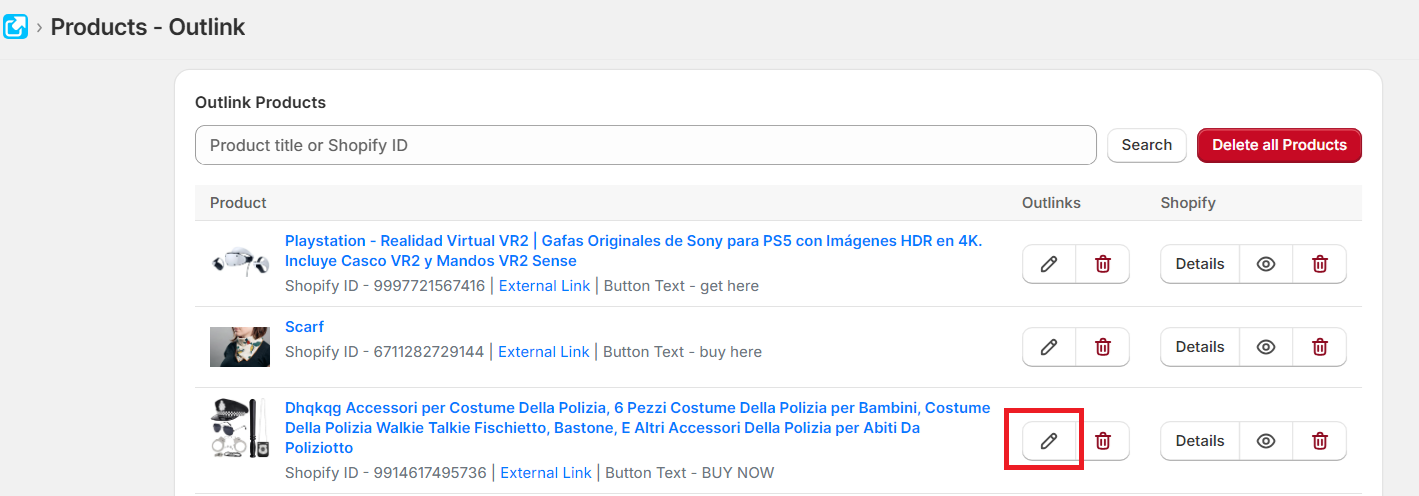
Step 2: Edit a Product
Open the product you want to configure and click Edit.
Step 3: Add Multiple External Links
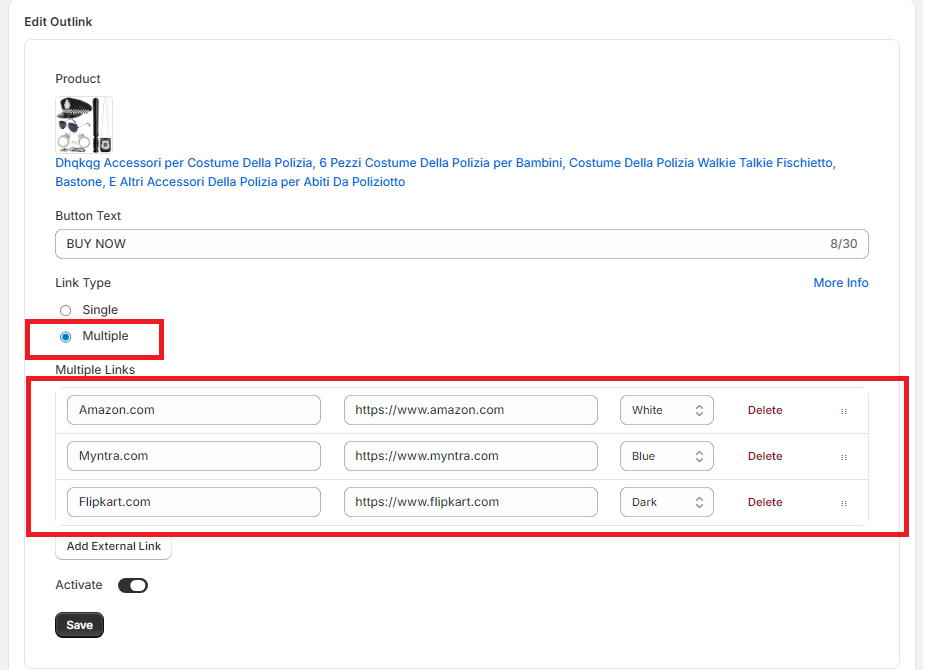
- Set Link Type to Multiple Links.
- Add up to 10 external links for the product.
- Optionally customize the title or label for each link.
Step 4: Save Your Changes
Enable the Outlink and click Save to apply your changes.
Customer Experience
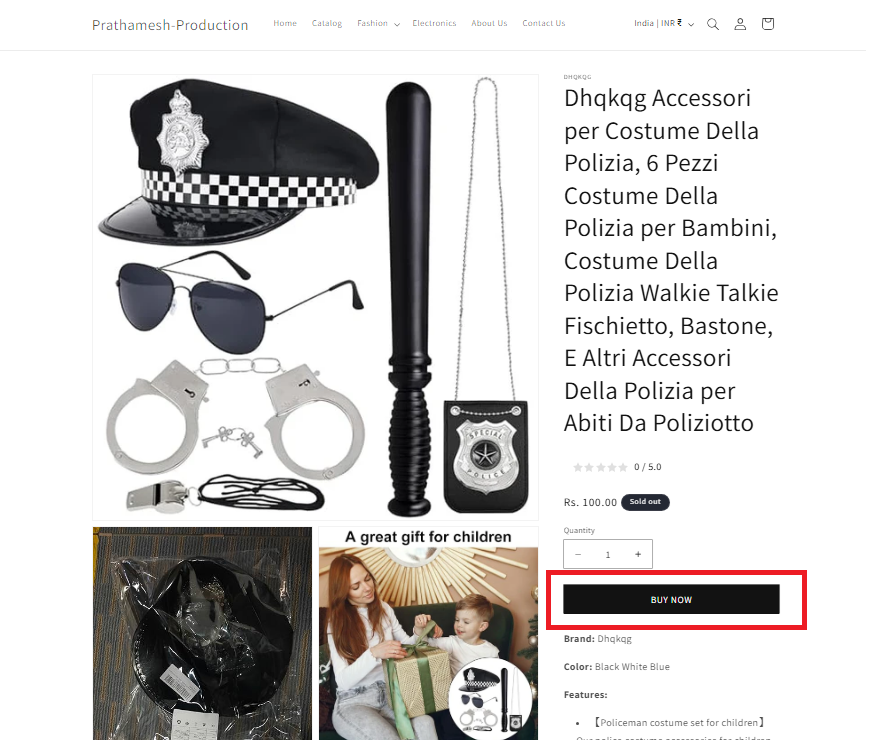
When customers visit your product page and click the Outlink button:
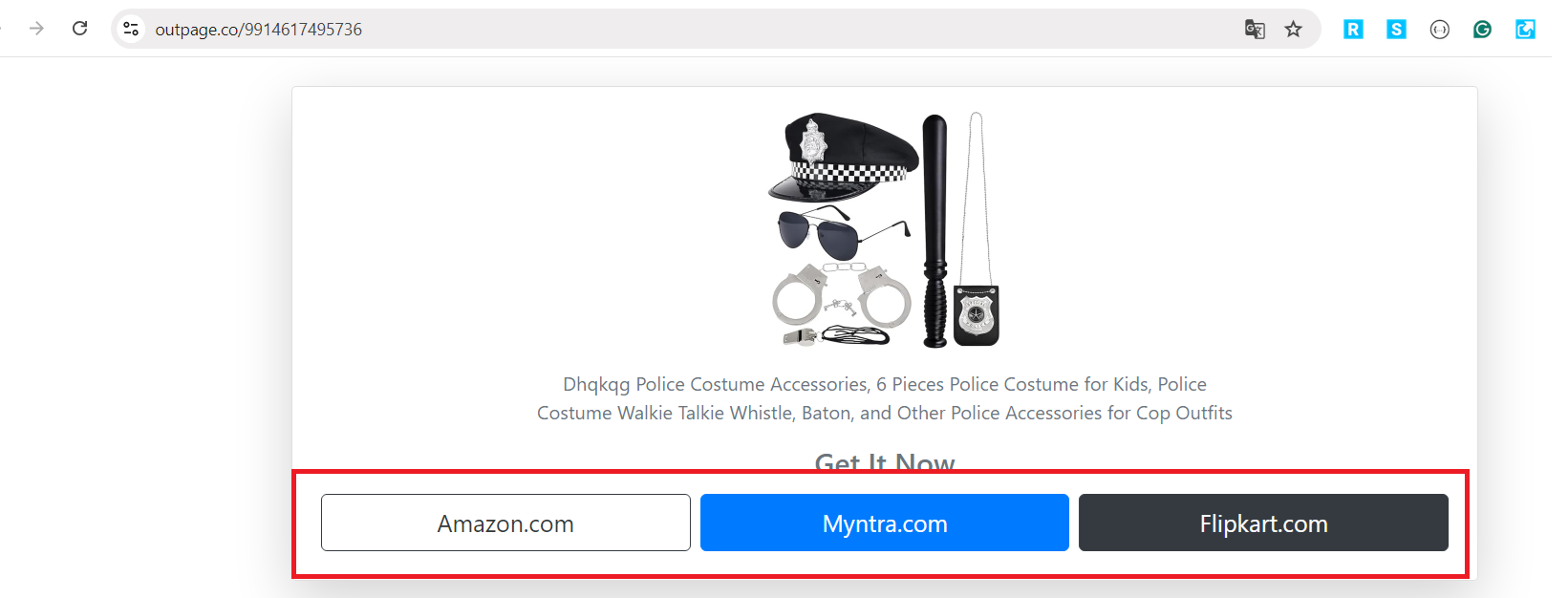
- A dedicated landing page opens.
- The page displays all the external links you've configured for that product.
- Customers can choose the destination they prefer.
Important Notes
Plan Availability
The Multiple Links feature is available on Pro and higher plans.
App Dependency
If the Outlink app is uninstalled, the Multiple Links landing page will no longer be available. Products will automatically use the primary external link instead.
Bulk Editor Support
Multiple Links cannot currently be created or updated using the Bulk Editor.
Variant Support
Multiple Links can also be configured for individual product variants.