The Sticky Outlink Button keeps your Outlink button visible as customers browse your product page, making it easier for them to access your external link at any time.
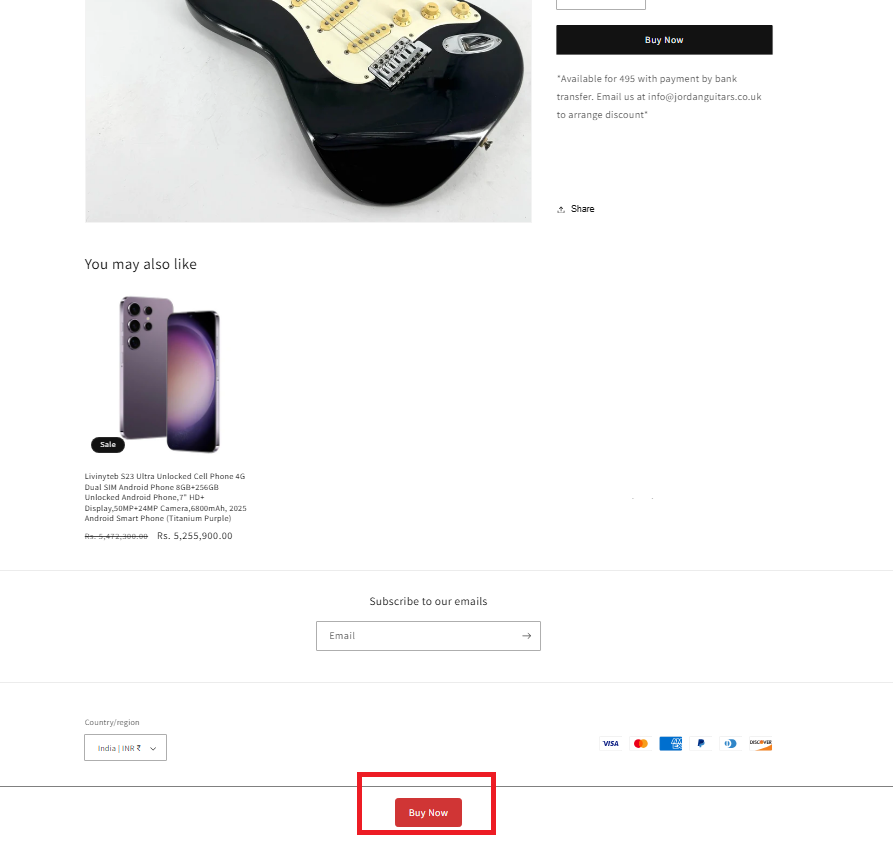
The sticky button appears as customers scroll through the page, allowing them to click the Outlink without needing to return to the original product section.
This improved accessibility can help create a smoother shopping experience and encourage more clicks on your external links.
Benefits of the Sticky Outlink Button
- Keeps the Outlink button visible while customers scroll.
- Makes it easier for customers to access your external links.
- Helps improve engagement and click-through opportunities.
- Works with both Multiple Links and Variant-Level Links.
Step 1: Enable the Sticky Button
- Open the Outlink Dashboard.
- Navigate to Settings → Advance > Sticky Button.
- Turn the Enable Sticky Button toggle ON.
- Click Save.
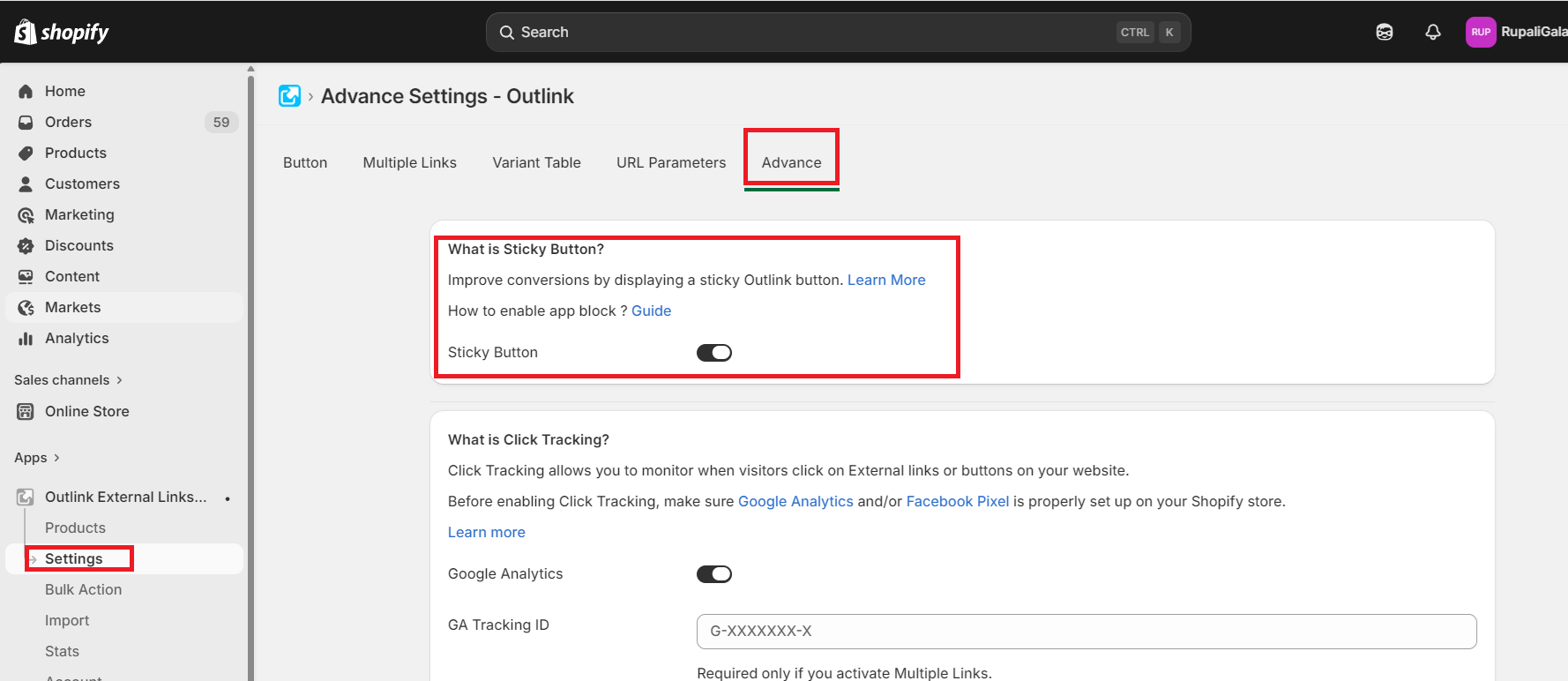
Step 2: Add the Sticky Button App Block
To display the Sticky Outlink Button on your storefront, you'll also need to add the Sticky Button App Block to your theme.
Follow the Sticky Button App Block Installation Guide to add the app block.
How It Works
Once enabled:
- The Sticky Outlink Button appears as customers scroll through the product page.
- Customers can click the button at any time without scrolling back to the original product information.
- Clicking the button redirects customers to the configured external destination.
Product Page:
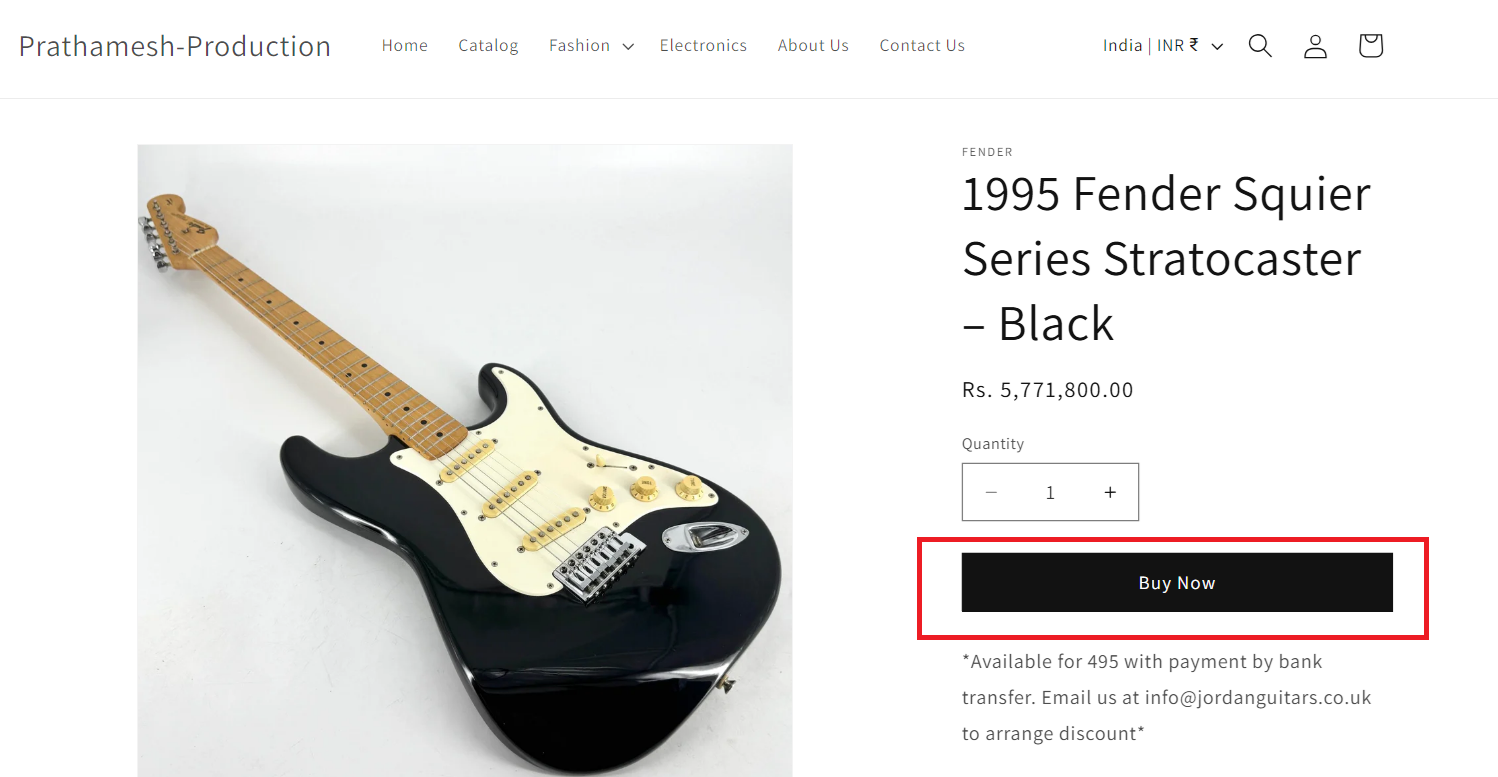
Scroll down to see the sticky button:
Important Notes
Plan Availability
The Sticky Outlink Button is available on the Pro plan and above.
Feature Compatibility
The Sticky Outlink Button fully supports:
- Multiple Links
- Variant-Level Links