Shipr can automatically add Shopify order tags when an order is fulfilled through Amazon FBA. This makes it easier to identify how an order was fulfilled and track shipment outcomes directly from your Shopify Admin.
Tags are applied based on the FBA shipping mode or the fulfillment status.
Configure Order Tags
You can define custom tags for each fulfillment scenario in the Shipr Dashboard.
Auto Mode Tag
Applied automatically when an order is fulfilled via Auto Mode.
Example:
Shipr-fba-auto
Manual Mode Tag
Applied automatically when an order is fulfilled manually through Ship with FBA.
Example:
Shipr-fba-manual
Failed Shipment Tags
Shipr also supports automatic tagging for failed fulfillment attempts.
Failed Orders Tag
Applied when an Auto Shipment fails completely.
Example:
Shipr-fba-failed
Partially Failed Orders Tag
Applied when only part of an order is successfully fulfilled and the remaining items fail.
Example:
Shipr-fba-partial-failed
How It Works
- Open the Shipr Dashboard.
- Navigate to FBA Settings → Order Tags.
- Enter your preferred tag for each scenario.
- Save your changes.
Shipr will automatically apply the configured tags whenever the corresponding event occurs.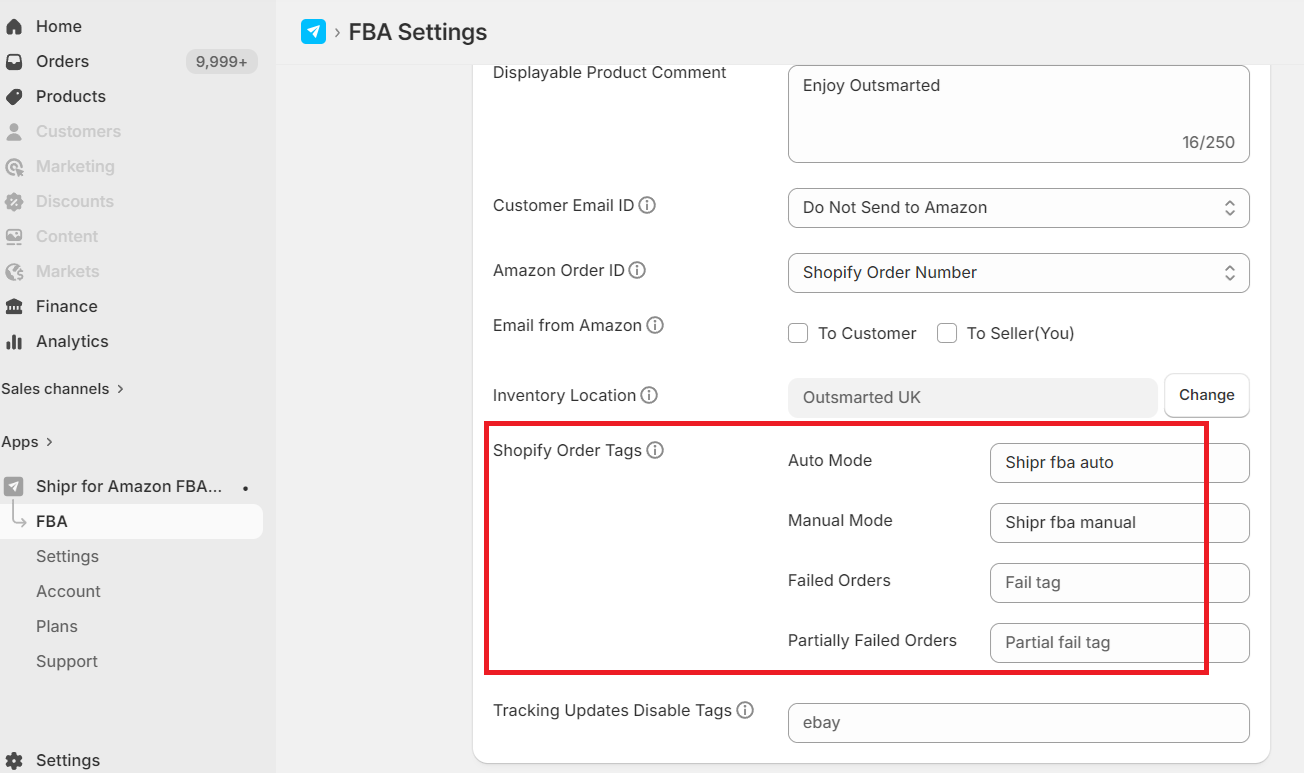
Important Notes
- Tags can be customized to match your existing Shopify workflow.
- If a tag field is left blank, no tag will be added for that event.
- Order tags can be used with Shopify filters, automations, reports, and third-party apps.
Tip: Use clear tag names such as Shipr-fba-auto, Shipr-fba-manual, Shipr-fba-failed, and Shipr-fba-partial-failed to quickly identify fulfillment status and automate post-fulfillment workflows.