Some Highlight icons may appear without their original colors. This is a known issue caused by changes from our icon provider service — not a problem with your store settings.
Before You Begin
- Identify which Highlights are affected (icons showing in black and white instead of full color).
- Plan a few minutes per icon — each affected Highlight must be updated individually.
What Happened
We have noticed that many icons have lost their original color due to recent unannounced changes made by our icon provider service.
Before


After (color restored)
Step-by-Step Instructions
Follow these steps for each affected icon:
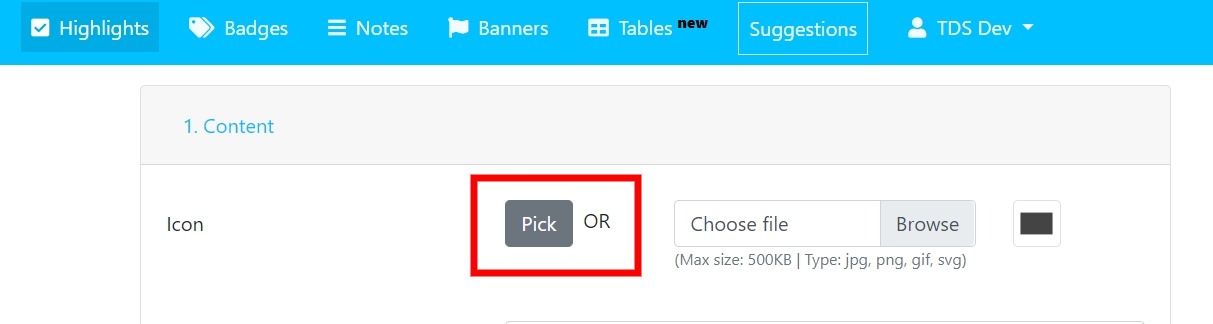
- Go to the Edit Highlight screen for the affected Highlight.
- Click the Icon Pick button.
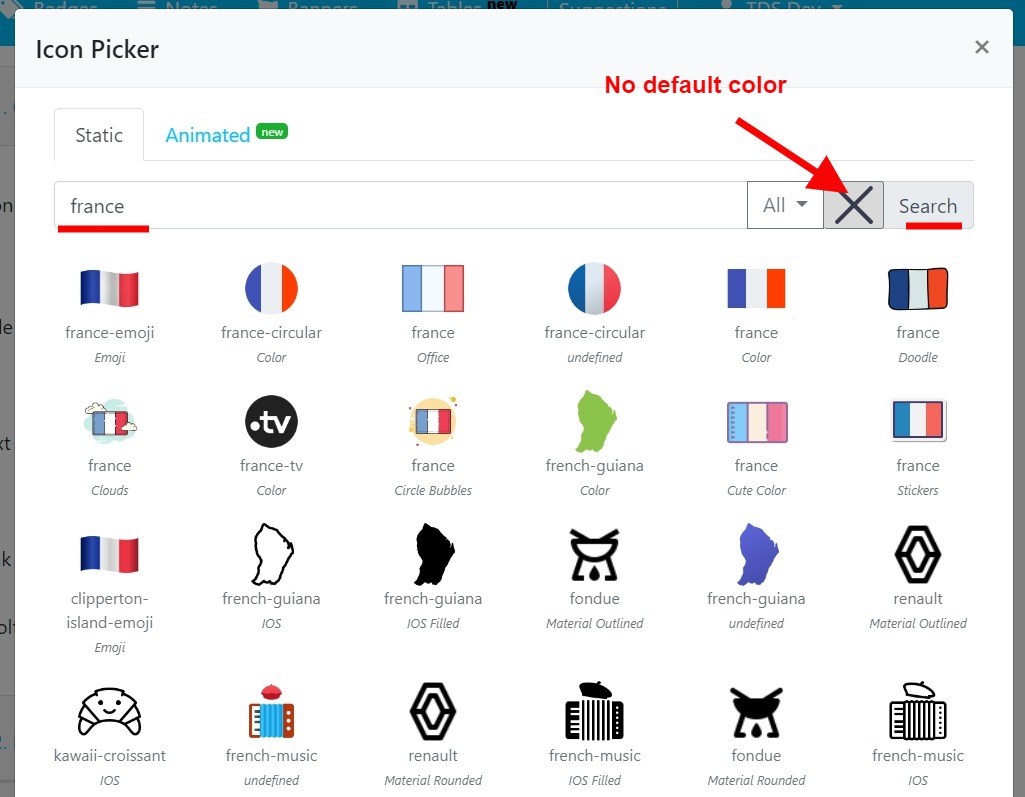
- Enter the icon search text.
- Ensure no default color is selected, then click Search. If a default color is selected, clear it first.
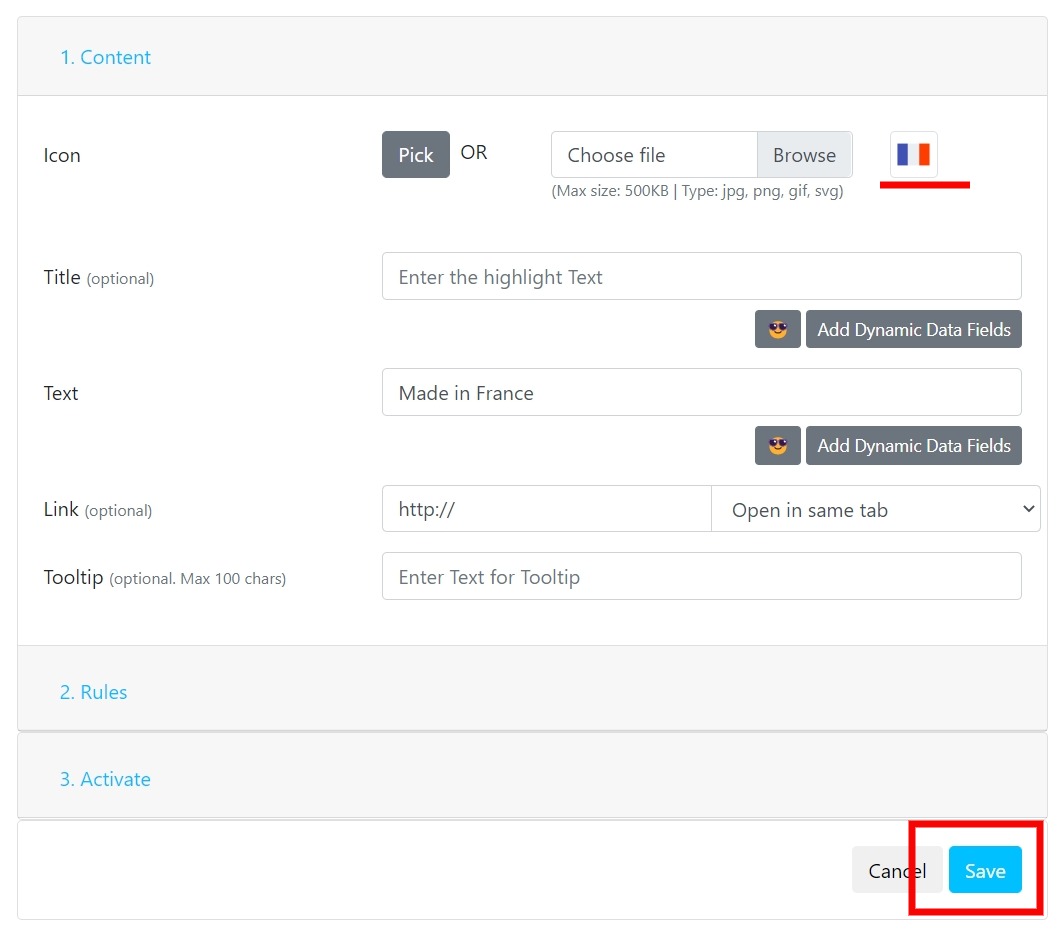
- Pick the desired icon from the search results.
- Click Save.
Expected Result
The icon displays in its original full color on your storefront.
Important Notes
- This process must be repeated for each affected icon — it cannot be automated due to the nature of the icon provider changes.
- After restoring colors, preview the product page to confirm the icon looks correct.
Troubleshooting
The icon still appears black and white after saving
- Clear your browser cache and refresh the product page.
- Re-open the Highlight and confirm no default color filter is selected in the Icon Pick search.
- Contact support if the issue persists.