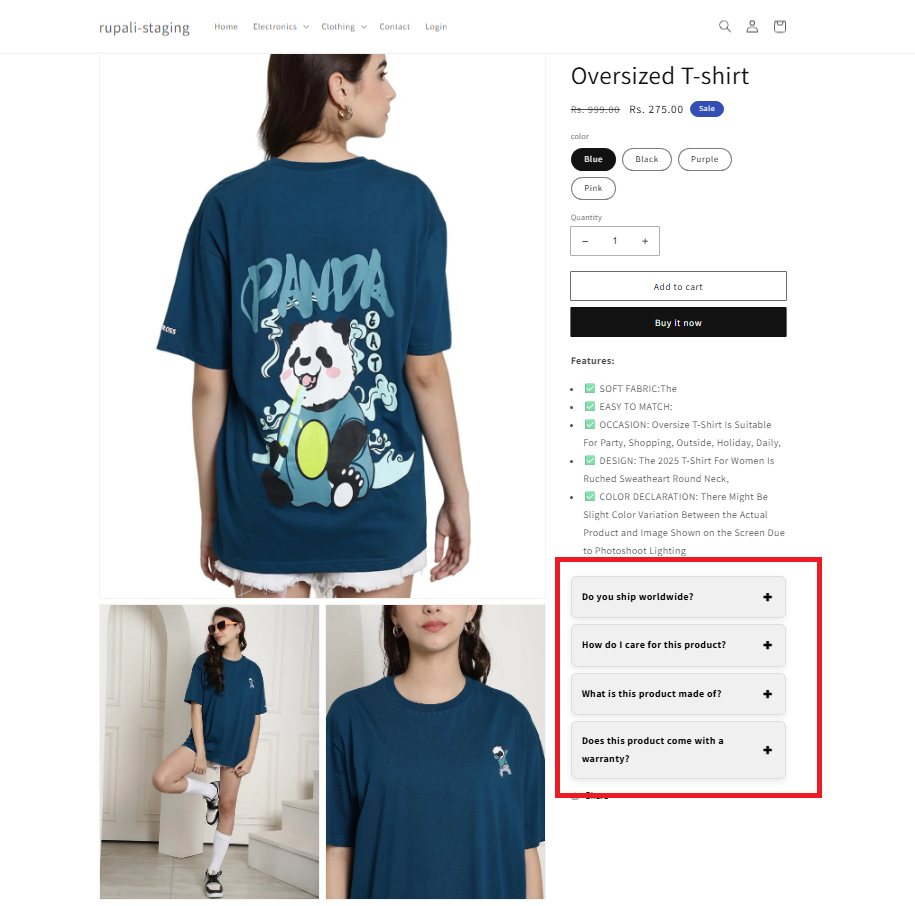
The FAQ Collapsible Block lets you display frequently asked questions in a clean, accordion-style layout. Customers can expand only the questions they're interested in, keeping your product pages organised and easy to navigate.
This compact design helps shoppers quickly find the information they need without overwhelming the page.
Benefits
- Display FAQs directly on product and landing pages
- Keep pages clean with collapsible, accordion-style sections
- Help customers find answers quickly
- Reduce support requests by addressing common questions upfront
- Customise the design to match your Shopify store's branding
How it works?
Step 1: Setup the metafield
- On your app dashboard homepage, locate the FAQ Collapsible Block.
- Click Setup Metafield to automatically create a product-level metafield:
- Namespace & key → neo.faq_block
This metafield connects your product pages with FAQ data stored in metaobjects.

Step 2: Add entries for metaobjects
- In your Shopify admin, go to Content → Metaobjects.
- Locate Neo FAQ Block.
- Add entries containing:
- Question
- Answer
- Category (optional)
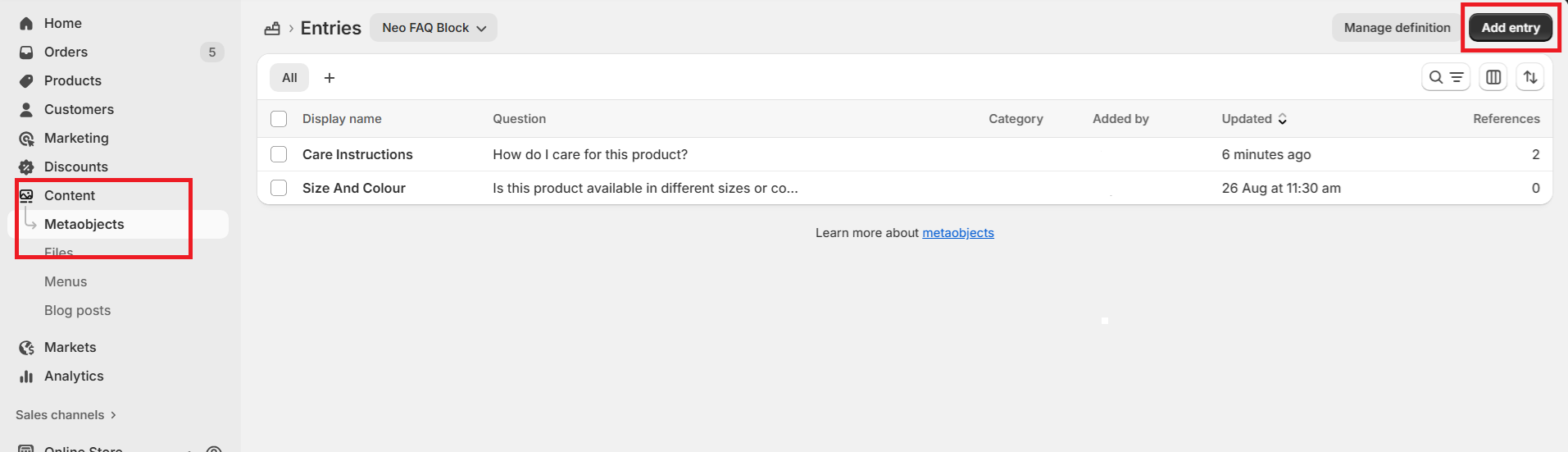
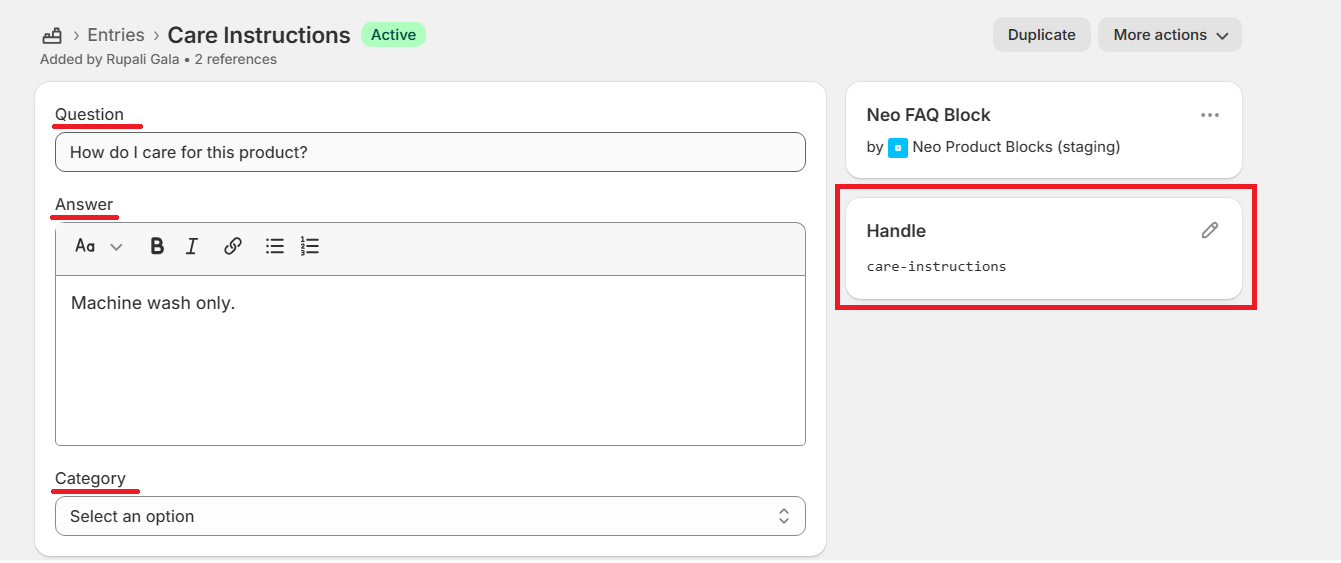
Example:
- Question: How do I care for this product?
- Answer: Machine wash only.
- Category: Quality (optional)
- You can add as many entries as you want to display.
Pro Tip: Assign unique handle names to FAQ entries for easier product mapping later.
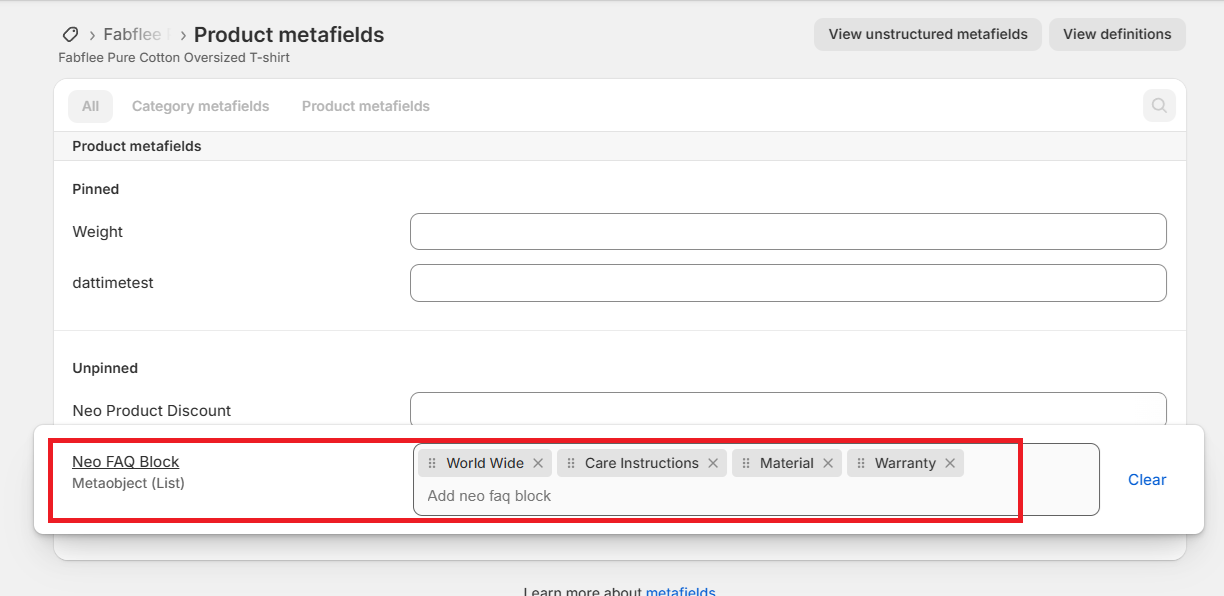
Step 3: Assign entries to products
- In the Shopify admin, open the product where you want to display FAQs.
- Scroll to Metafields → Neo FAQ Block.
- Select the entries you want to assign to that product.
- Click Save.
Step 4: Add the block to your product template
- Go to Online Store > Customize theme settings.
- Select the Product Template.
- Add and position the Neo Product FAQ Collapsible Block as required.
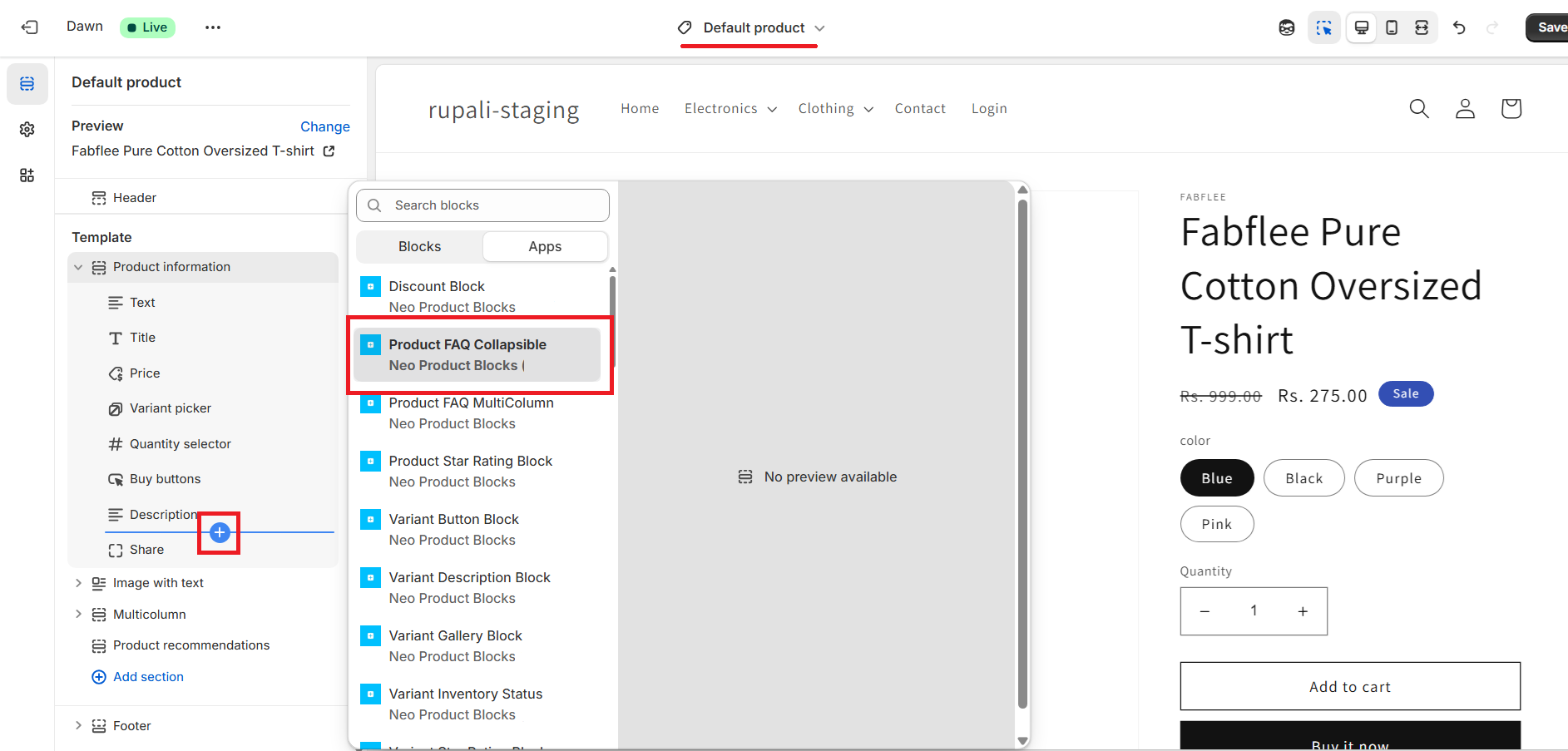
Step 5: Connect metaobjects
Choose how you want to connect and display entries:
- Dynamic (bulk): Displays all metaobject entries assigned at the product level.
- Dynamic (one-by-one): Select specific entries to display across all products.
- Static: Manually add fields for FAQs inside the block (applies commonly to all products)
Note: When using Dynamic (bulk), leave the “Question” and “Answer” placeholder fields empty to avoid duplicate content.
You can find the detailed explanation here.
Step 6: Style your block
From the block settings, you can customize:
- Font size
- Icon style
- Text & background colors
- Alignment
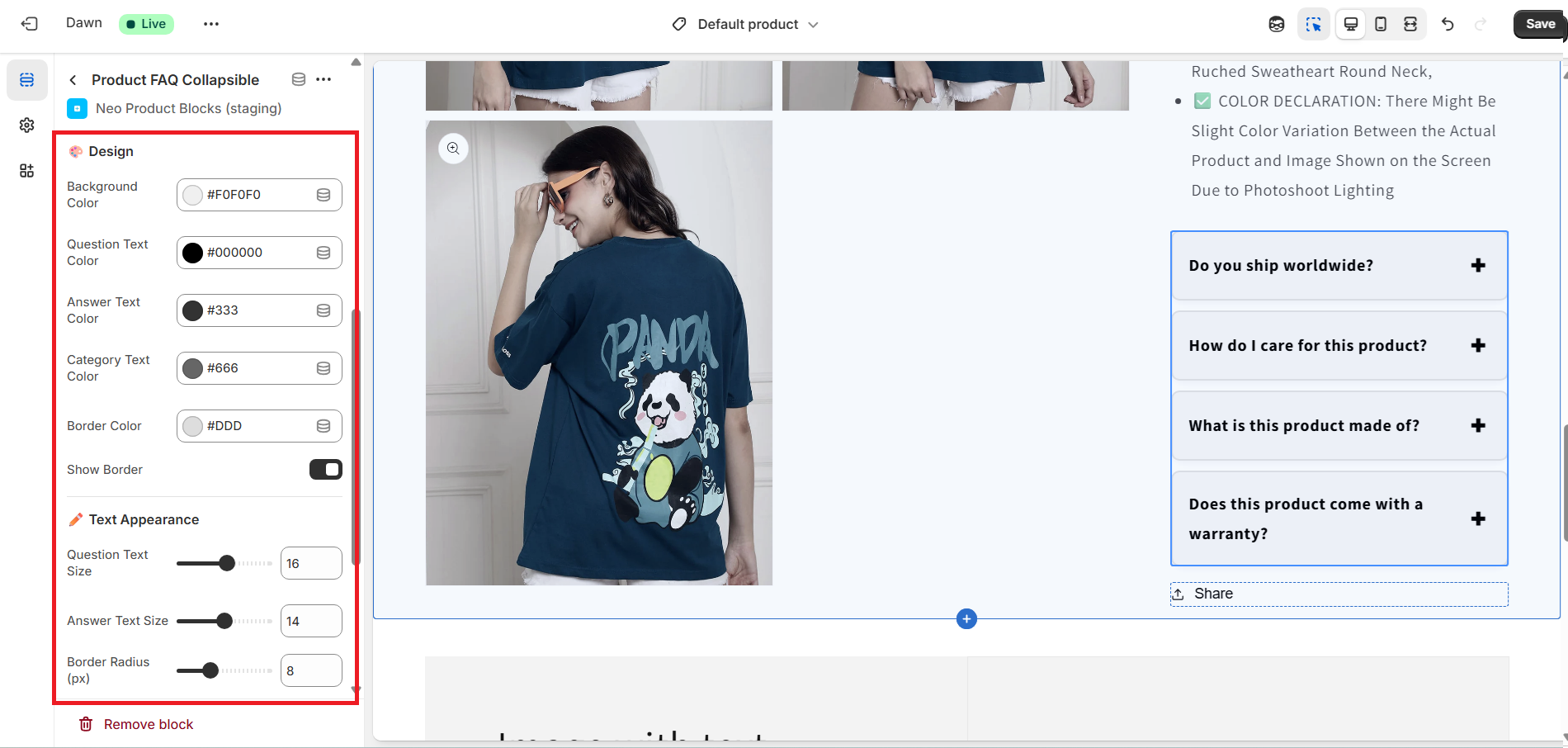
Preview your changes to ensure they match your store’s design.
Step 7: Save & Publish
When everything looks good, click Save to publish your updated product pages.
Sample Block preview: