Managing a large number of Outlinks? You can quickly update multiple products at once by importing a CSV file, eliminating the need to edit each product individually.
This feature is ideal for adding, updating, or modifying Outlinks in bulk, saving you time and effort.
How It Works
Step 1: Open the Bulk Editor
From the Outlink dashboard, navigate to:
Bulk Actions > Bulk Editor → Via CSV
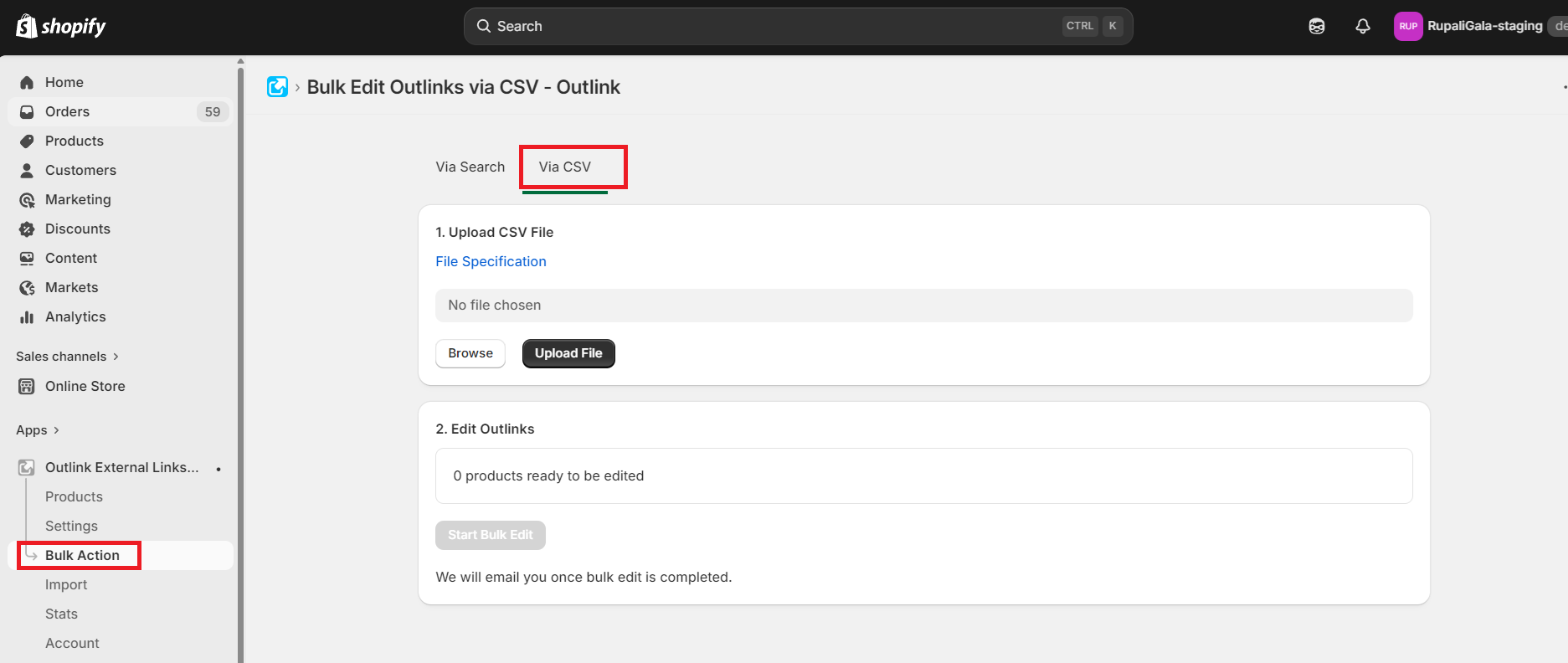
Step 2: Upload Your CSV File
Upload a CSV file containing the Outlink information for the products you want to update.
Tip
Make sure your CSV file follows the required format before uploading to ensure a successful import. know more
Step 3: Start the Bulk Update
Click Start Edit to begin processing the CSV file.
The app will automatically update the selected products using the information provided in your CSV.
Step 4: Review the Results
Once the bulk update is complete, you'll receive an email containing the results of the import, including the status of the updated products.
Important Notes
CSV Limits
- A single CSV file can update up to 2,000 products.
- Multiple variants of the same product are counted as one product toward this limit.
Processing Time
The estimated processing time is:
Number of Products × 3 seconds
Processing times may vary depending on the number of products and platform API limits.
Tip
For the best experience, verify your CSV data before starting the import to avoid unnecessary updates or errors.
Need Help?
If you encounter any issues while importing your CSV file or need assistance with the required format, please contact our support team. We'll be happy to help.