A Countdown Timer helps create urgency by displaying a live timer inside your Badges or Highlight Boxes. Showing shoppers exactly how much time is left for a promotion encourages them to act quickly instead of delaying their purchase.
Whether you're running a flash sale, seasonal campaign, or limited-time offer, a countdown timer can help increase conversions by creating a sense of urgency.
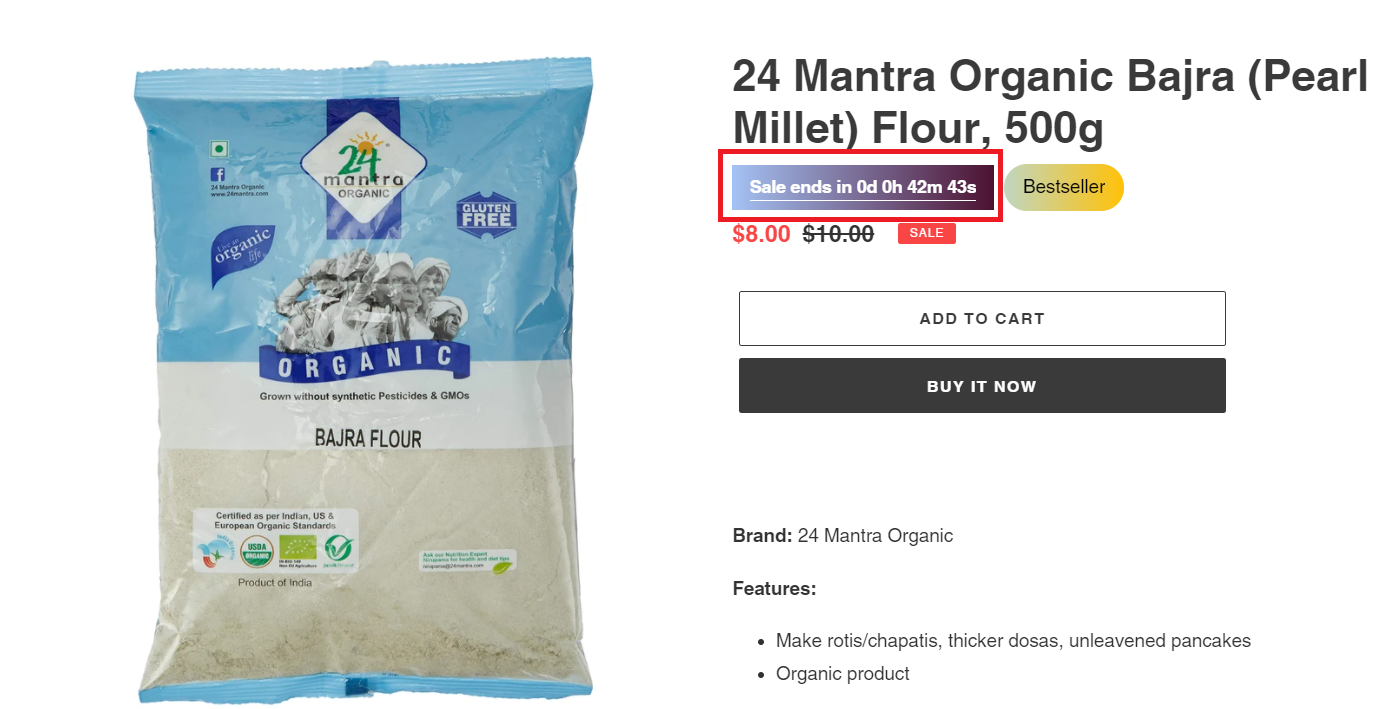
How to Add a Countdown Timer
Adding a countdown timer is quick and easy.
Step 1: Open Dynamic Data Fields
Navigate to:
Prime Dashboard → Dynamic Data Fields
Step 2: Select Countdown Timer
Locate Countdown Timer and click Settings.
Step 3: Configure the Timer
Set the following options:
- Sale End Date – Choose when the countdown should end.
- Language – Select the language used to display the timer.
- Display Format – Choose a predefined format or create your own using the Custom option.
- Alternate Text (Optional) – Display custom text after the countdown expires (for example, Offer Ended or Sale Closed).
Step 4: Add the Dynamic Data Field
While creating or editing a Badge or Highlight, insert the {{CountdownTimer}} dynamic data field into the text. Example:
Sale Ends In: {{CountdownTimer}}
The timer will automatically update in real time until the selected end date.

Create a Custom Countdown Format
If you'd like the timer to appear in a custom format (for example: 02d 14h 36m 18s), follow these steps:
- Navigate to Prime Dashboard → Dynamic Data Fields.
- Open Countdown Timer settings.
- Under Language, select Custom.
- You'll see separate text fields for:
- Days
- Hours
- Minutes
- Seconds
- Enter your preferred suffix for each field.
Example:
Field | Value |
|---|---|
Days |
|
Hours |
|
Minutes |
|
Seconds |
|
This will display the countdown as:
02d 14h 36m 18s
Alternate Text
Once the countdown reaches zero, you can automatically replace it with custom text. Examples:
- Offer Ended
- Sale Closed
- New Offer Coming Soon
- Promotion Expired
This ensures your badges remain informative even after the promotion has finished.

Note: Countdown Timers are available for Pro plan and above users only. If your subscription is downgraded, badges or highlights using the Countdown Timer dynamic data field will no longer be displayed until you upgrade again.